
How much does Movavi Video Editor 27 cost?
The pricing structure for Movavi Video Editor 27 has seen recent adjustments, with the company lowering costs in some regions. For users preferring a subscription model, monthly costs are approximately $20, €19, or £18. However, the most cost-effective subscription is the yearly plan, priced at $55, €44, or £41, which represents just over two months of the monthly rate. For those who prefer to own their software, a perpetual license is available for £150, €90, or £90.
When compared to industry standards, Movavi remains a highly affordable entry point. For instance, while Adobe Premiere Pro can cost around $276 annually, Movavi provides a much lighter financial burden for hobbyists. Users can also test the software via a free trial, though this version is limited to 60-second projects and includes a watermark on all exported videos.
Comparing Subscription vs. Perpetual Licensing
Choosing between a subscription and a perpetual license depends on how frequently you intend to use the software. The subscription model offers lower upfront costs and allows for easier budget management, but the perpetual license ensures you own the specific version you purchased without recurring fees. It is worth noting that there is a significant discrepancy in the pricing between different currencies, particularly regarding the perpetual license costs in the US versus other regions.
What are the main editing features in version 27?
Movavi Video Editor 27 functions as a highly capable tool for creators, offering a streamlined workflow for importing and organizing media. One of its most efficient features is the media preview capability; simply mousing over an imported clip in the media section allows users to preview footage and set in and out points without needing to drag the clip to the timeline first. The software supports multiple layers, which is essential for modern video production, though it does maintain a base layer that cannot be moved or overlapped by other clips.
The editor provides a vast library of Titles, Transitions, Effects, and Elements, categorized for easy navigation with an integrated search function. However, users should be aware of the 'premium' distinction. Assets marked with a small 'crown' icon are locked behind a separate subscription plan, which costs €36 per month or €110 per year. To avoid unexpected costs during export, users can simply use the 'free' filter to view only the assets included in the base software.
Beyond basic cuts, the 'Tools' section includes several high-value features that are included in the base cost, such as:
- Image stabilization for smoother footage.
- Background removal and green screen capabilities.
- AI-based subtitle generation, which has proven to be highly accurate.
How do the new templates work?
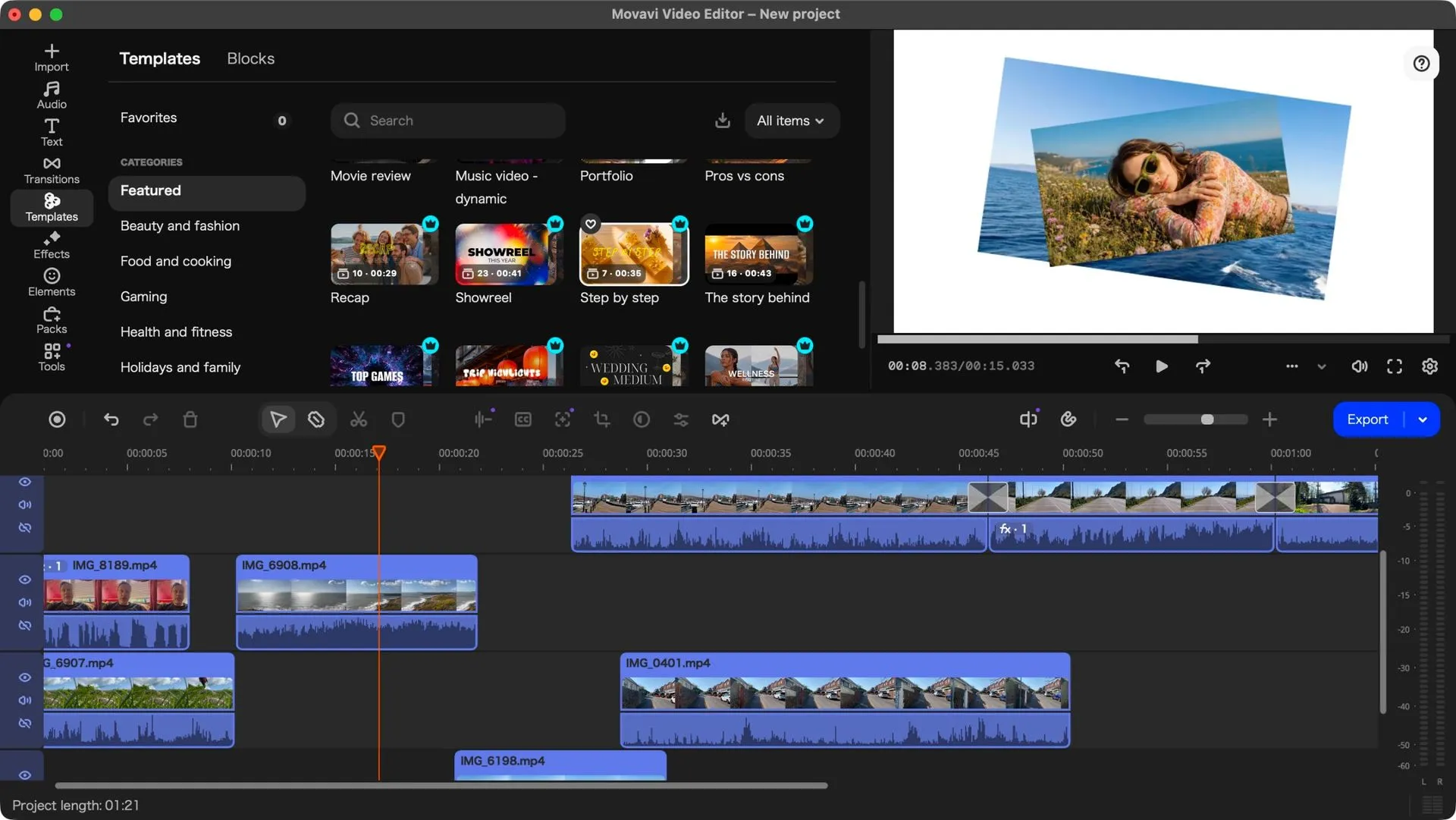
The most significant innovation in version 27 is the introduction of a comprehensive Templates system, designed to assist users who lack advanced editing experience. These templates are organized into 12 distinct categories, including Gaming, Beauty and Fashion, and Marketing and Promo. A template can be used as a standalone video or integrated as a component within a larger, more complex project.
The workflow for using templates involves dragging them onto the timeline, where they expand into various sections. Each section contains 'placeholders' that must be replaced with the user's own media. To replace a placeholder, users click on the 'clips to replace' text, which reveals a thumbnail of the placeholder. Clicking this thumbnail opens the project's media library, allowing the user to select a specific clip and define the segment they wish to use.
Customizing Template Sections
For users who want more control than a standard drag-and-drop approach, Movavi allows for deeper customization. By double-clicking a Template's Section, users can access 'Clip Settings.' This menu provides the ability to modify text fields, adjust applied effects, and further refine the visual style of that specific segment. Furthermore, templates come with pre-set soundtracks that can be kept, deleted, or reordered, allowing for a highly customized end product that can be assembled in minutes.
Is the user experience seamless?
While the editing engine is powerful, the initial setup process remains a notable point of frustration. Currently, Movavi Video Editor 27 does not automatically detect the user's operating system language settings. Instead, the software frequently defaults to Japanese upon the first launch. This creates an immediate barrier for users who do not read Japanese, requiring them to use external tools like Google Translate to navigate the interface and locate the language settings.
This lack of automatic OS language detection is viewed as a significant oversight for a modern software application. While the issue is easily resolved once the user finds the correct menu, the fact that it remains an issue in version 27 suggests a lack of attention to the initial user onboarding experience. Once the language is correctly set, however, the interface is generally intuitive and well-organized.
FAQ: Movavi Video Editor 27
Is there a free version of Movavi Video Editor 27?
Yes, a free trial is available for all users. However, the trial version is restricted in two major ways: it limits all project exports to a maximum length of 60 seconds, and it applies a watermark to any video you produce. It is intended for testing features rather than final production.
Can I use Movavi on a Mac?
Yes, Movavi Video Editor 27 is a multi-platform application. It is fully compatible with both Windows and macOS environments. It is important to note, however, that there is currently no support for Linux operating systems.
What is the difference between the base software and the premium assets?
The base software includes a wide range of tools, including AI subtitles and stabilization. However, many transitions and effects are marked with a 'crown' icon. These premium assets require a separate subscription (€36/month or €110/year) to be used in exported videos without errors.
How do I use the new AI subtitle feature?
The AI subtitle feature is located within the 'Tools' section of the software. It is designed to automatically transcribe audio from your clips into text. This feature is included in the standard purchase price and does not require an additional premium subscription.
Are the templates difficult to use?
The templates are designed for ease of use, particularly for beginners. While the process of replacing placeholders may take a moment to understand initially, the workflow is straightforward: select the placeholder thumbnail, choose your clip from the media library, and apply it to the timeline.
Key takeaways
- Movavi Video Editor 27 introduces a versatile template system across 12 categories.
- The software is highly affordable, with yearly subscriptions starting at $55.
- AI-driven tools like subtitle generation are included in the base cost.
- A major flaw remains the failure to automatically detect OS language settings.
- The application is compatible with both Windows and Mac platforms.
Conclusion
Movavi Video Editor 27 successfully bridges the gap between overly simplistic mobile editors and daunting professional suites. The addition of customizable templates provides immense value for social media creators and hobbyists looking for speed and professional aesthetics. While the pricing is competitive and the AI tools are impressive, the software is held back by a clunky initial setup and a paywall for certain creative assets. For those seeking an affordable, capable, and multi-platform solution, Movavi remains a top recommendation, provided they are willing to navigate its minor interface quirks.